
If you’re preparing to trade, sell, or give away your device, such as when selling it to The BuyBack Platform it’s important to erase your eSIM and perform a factory reset to remove all personal data.
To Erase Your eSIM on Your iPhone or iPad
-
Go to Settings.
-
Tap Cellular.
-
Depending on your plan setup:
-
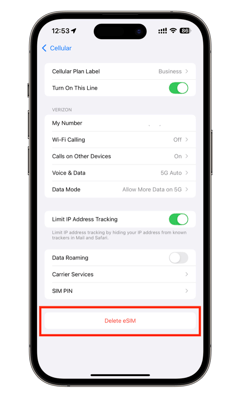
If you have a single plan:
-
Tap Delete eSIM.
-
-
If you have multiple plans:
-
Tap the plan you want to erase.
-
Then tap Delete Plan.
-
-

To Factory Reset Your iPhone or iPad
Performing a factory reset will erase all personal data, including apps, settings, and content. You’ll also have the option to erase your eSIM during the reset:
-
Go to Settings.
-
Tap General.
-
Scroll down and tap Transfer or Reset iPhone (or iPad).
-
Select Erase All Content and Settings.
-
Follow the on-screen prompts.
-
When asked, choose “Erase and Delete All eSIMs” to completely remove the eSIM and cellular plans.
Why These Steps Matter
-
Erasing your eSIM ensures your cellular plan and account are removed from the device.
-
Factory resetting guarantees your personal data is wiped clean, protecting your privacy.
By following these steps, you’ll have a clean device, ready to be sold or traded. If you’re sending your device to The BuyBack Platform, this ensures the process is smooth, secure, and hassle-free.